
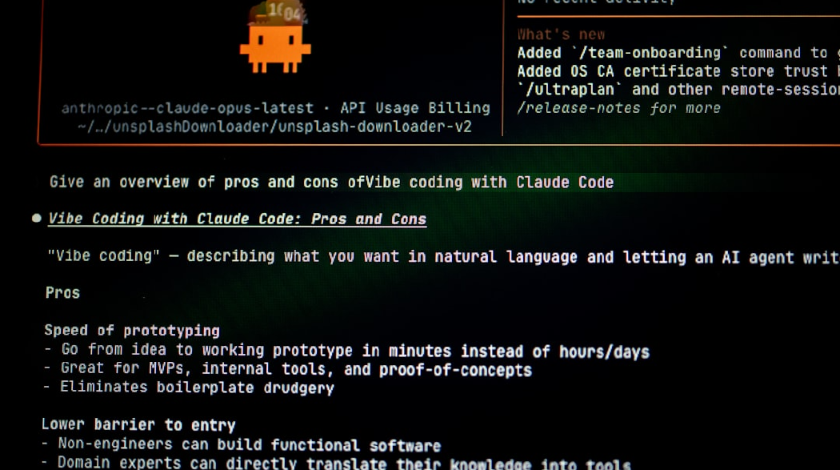
Have you ever stumbled upon a set of instructions that looks like gibberish, telling you to paste some mysterious command into your computer’s terminal? I remember the first time someone told me to use a curl command to install software. My immediate reaction was, “Wait, what am I actually doing here?” If you have come across something like “curl -fssl https://claude.ai/install.cmd -o install.cmd” and felt confused or worried about what it means, you are definitely not alone.
https://www.example.com/?zoq7PA-d2101b
The truth is, command line installation methods have become increasingly popular among developers and tech companies. They offer a quick way to distribute software and automate installations. However, for someone who is used to clicking download buttons and running setup wizards, these commands can seem intimidating or even dangerous. In this guide, I am going to walk you through everything you need to know about curl commands, what they do, and most importantly, how to use them safely. By the end of this article, you will understand not just what these commands mean, but also how to protect yourself when using them.
What Is Curl and Why Do People Use It?
Let me start with the basics. Curl is a command line tool that has been around since 1997. The name stands for “Client URL,” and its main job is to transfer data to or from a server using various protocols. Think of it as a way to download files or communicate with websites without using a web browser.
When I first learned about curl, I wondered why anyone would bother with typing commands when you can just click a download button in your browser. Well, there are actually several good reasons. First, curl is incredibly fast and efficient. It does not load any graphics, ads, or unnecessary elements. It just grabs exactly what you ask for and nothing else. Second, curl can be automated. If you need to download the same file regularly or want to include a download step in a larger automated process, curl is perfect for that.
Many software developers prefer curl because it works the same way across different operating systems. Whether you are on Windows, Mac, or Linux, the curl command structure remains consistent. This makes it easier to write installation instructions that work for everyone. Additionally, curl has powerful features for handling authentication, cookies, headers, and other technical aspects of web communication that would be complicated to manage through a regular browser download.
I have personally used curl hundreds of times to download configuration files, update scripts, and install development tools. Once you get comfortable with it, you realize how convenient it can be compared to navigating through multiple web pages just to find the right download button.
Breaking Down the Command: curl -fssl
Now let us look at the specific command structure you might encounter. When you see “curl -fssl https://claude.ai/install.cmd -o install.cmd,” there are several parts working together. Understanding each piece will help you feel more confident about what is actually happening on your computer.
The word “curl” at the beginning tells your computer to use the curl program. Everything that comes after it consists of options and arguments that tell curl exactly what to do.
The part that says “-fssl” is actually a combination of flags. In curl, flags are options that modify how the command behaves. The “-f” flag tells curl to fail silently on server errors. What this means in plain English is that if the server returns an error (like a 404 page not found), curl will stop and not save anything. This prevents you from accidentally downloading error pages when you expect a real file. I learned this the hard way once when I downloaded what I thought was a program file, but it turned out to be an HTML error message. That experience taught me to always use the -f flag.
The “ssl” part relates to secure connections. When you visit a website that starts with “https” instead of “http,” you are using SSL or TLS encryption. This encryption protects the data traveling between your computer and the server from being intercepted or modified by someone else. The ssl flag in curl ensures that this secure connection is properly verified. Without proper SSL verification, someone could potentially intercept your download and replace it with malicious software.
The “https://claude.ai/install.cmd” portion is the URL, or web address, where the file lives. This tells curl exactly where to go to get the file. In this example, it is pointing to a domain called claude.ai and requesting a file called install.cmd.
Finally, the “-o install.cmd” part tells curl what to name the file when it saves it to your computer. The “-o” stands for “output,” and “install.cmd” is the filename. If you did not include this part, curl would either display the file contents in your terminal window or save it with a default name.
Understanding Claude AI and Installation Methods
Before we go further, you might be wondering what Claude AI actually is. Claude is an artificial intelligence assistant created by a company called Anthropic. It is designed to help people with various tasks through natural language conversation. Companies and developers might want to install Claude AI tools or integrations to use this technology in their own applications.
Software installation has evolved significantly over the years. When I first started using computers, almost everything came on CD-ROMs with elaborate graphical installers. You would insert the disc, click through several screens, agree to terms you probably did not read, and wait for progress bars to complete. While this method is user-friendly, it has limitations.
Command line installation offers several advantages for certain situations. It can be faster, especially when you know exactly what you want to install. It can be automated, which is helpful for IT professionals who need to set up many computers with the same software. It also gives users more control over the installation process, allowing them to specify custom options that might not be available in a graphical installer.
However, command line installation also has drawbacks. The biggest one is that it is less intuitive for people who are not comfortable with technical commands. There is also a higher risk of typos, which could lead to downloading the wrong file or running unintended commands. This is why it is absolutely essential to double-check any command before you run it, especially when it involves downloading executable files.
Security Considerations You Need to Know
This is probably the most important section of this entire article. I cannot stress enough how critical it is to be cautious when downloading and running files using command line tools. The convenience of curl comes with significant responsibility.
First and foremost, you should always verify the source of any command you are asked to run. If someone sends you a curl command in an email, on social media, or even in a forum post, do not just blindly execute it. Ask yourself: Do I trust this source? Is this an official website or communication channel? Have I verified that this URL actually belongs to the company or service I think it does?
I once almost ran a curl command that someone posted in a programming forum. Luckily, I decided to check the URL first and discovered it was pointing to a suspicious domain that had nothing to do with the software I thought I was installing. That experience made me extremely cautious about any installation command I receive from unofficial sources.
SSL and HTTPS are your friends when it comes to secure downloads. When a URL starts with “https,” it means the connection is encrypted. However, encryption alone does not guarantee that the site itself is trustworthy. A malicious site can also use HTTPS. You need to verify that the domain name is correct and belongs to the legitimate organization.
Another red flag to watch for is when someone tells you to bypass SSL verification. Sometimes you might see curl commands with flags like “-k” or “–insecure” that tell curl to ignore SSL certificate errors. This is almost always a bad sign. There are very few legitimate reasons to bypass SSL verification, and doing so opens you up to man-in-the-middle attacks where someone could intercept and modify your download.
Think about what the file will do once it is downloaded. The command we are discussing downloads a file called “install.cmd.” The .cmd extension indicates this is a Windows command script. When you run this file, it will execute commands on your computer. This could involve downloading additional files, modifying system settings, installing software, or potentially anything else. Unless you can review the contents of this script or absolutely trust the source, you should be very hesitant to run it.
I have made it a personal rule never to run installation scripts from sources I have not thoroughly verified. Even when the source seems legitimate, I try to review what the script does before running it. For .cmd files, you can open them in a text editor to see the commands they contain. If you see anything that looks suspicious or that you do not understand, it is better to ask for help or avoid running it altogether.
Step-by-Step Safe Installation Guide
If you have verified the source and decided to proceed with a curl installation, here is how to do it safely. These steps apply to the Windows operating system, which is what .cmd files are designed for.
Before you start, make sure you have curl installed on your system. Modern versions of Windows 10 and Windows 11 come with curl built in. To check if you have it, open Command Prompt or PowerShell and type “curl –version” and press Enter. If you see version information, you are good to go. If you get an error saying curl is not recognized, you will need to install it first.
Next, open your command line interface with appropriate permissions. For many installation scripts, you will need administrator privileges. To open Command Prompt as administrator on Windows, search for “cmd” in the Start menu, right-click on Command Prompt, and select “Run as administrator.” A window will pop up asking if you want to allow this app to make changes to your device. Click Yes.
Before running the full command, I recommend first just downloading the file without executing it. Use the curl command exactly as provided to download the install.cmd file. Once downloaded, open the file in a text editor like Notepad to review what it does. Look for any commands that seem unusual or concerning.
If the script looks legitimate and you understand what it will do, you can proceed to run it. In Windows, you would typically just type “install.cmd” and press Enter. The script will then execute the commands it contains.
Watch the installation process carefully. Pay attention to any prompts or messages that appear. If anything seems unexpected or suspicious, you can usually stop the process by pressing Ctrl+C.
After the installation completes, verify that everything worked as expected. Check that the software installed correctly and that no unwanted programs or changes were made to your system. I always run a quick security scan after installing software from command line sources, just to be safe.
Troubleshooting Common Problems
Even when you follow all the right steps, you might encounter problems. Let me walk you through some common issues and how to fix them.
SSL certificate errors are probably the most frequent problem people encounter with curl. You might see messages like “SSL certificate problem: unable to get local issuer certificate.” This usually happens when curl cannot verify the SSL certificate of the website you are trying to connect to. Before you bypass this error with insecure flags, try updating curl to the latest version, as older versions sometimes have outdated certificate lists. On Windows, you can also try updating your system certificates through Windows Update.
Permission denied errors typically mean you do not have the necessary rights to save files to the location where you are trying to download them. The solution is usually to run your command prompt as administrator, which I mentioned earlier. Alternatively, you could download the file to a location where you have write permissions, like your Documents folder.
If you get a “file not found” or “404” error, it means the URL you are trying to access does not exist or is incorrect. Double-check that you typed the URL correctly, paying special attention to capitalization, as URLs are case-sensitive. Also verify that the URL is still valid by trying to access it in a web browser.
Network connectivity problems can prevent curl from reaching the server. If you get timeout errors or connection refused messages, first check your internet connection. If you are on a corporate or school network, there might be firewall rules blocking curl or restricting access to certain websites. You may need to contact your network administrator for help.
Sometimes curl might download the file successfully, but when you try to run the installation script, nothing happens or you get errors. This could be because the file was corrupted during download. Try downloading it again. You could also check the file size to make sure it matches what you expect. A file that is only a few bytes is probably an error message rather than the actual installation file.
Conclusion
Understanding curl commands and command line installation methods does not have to be scary or confusing. While these tools offer powerful capabilities for downloading and installing software, they also require careful attention to security. The key takeaways are simple: always verify your sources, understand what a command will do before running it, never bypass security measures without good reason, and when in doubt, ask for help from someone knowledgeable.
Remember that graphical installers exist for good reasons, and there is no shame in preferring them if you are not comfortable with command line tools. However, knowing how to safely use curl can be valuable, especially as more software projects adopt this distribution method. Stay curious, stay cautious, and always prioritize your computer’s security over convenience.
Frequently Asked Questions
What does the curl command actually do?
The curl command is a tool that transfers data from or to a server using supported protocols like HTTP, HTTPS, FTP, and many others. In the context of software installation, it is most commonly used to download files from the internet directly to your computer without needing a web browser. Think of it as a specialized download tool that works through text commands rather than clicking buttons.
Is it safe to run curl commands I find online?
Not always. You should only run curl commands from sources you absolutely trust. The command itself is safe, but it can be used to download malicious files if someone gives you a URL pointing to harmful content. Always verify that the URL belongs to the legitimate organization, check that it uses HTTPS for security, and if possible, review what the downloaded file does before executing it. Never run commands from random internet strangers.
Can curl give my computer a virus?
Curl itself cannot give your computer a virus. It is just a tool for downloading files. However, the files you download using curl could potentially be malicious if they come from untrustworthy sources. This is why verifying the source and the URL is so critical. The curl command is like a delivery truck – it is not dangerous itself, but it can deliver dangerous packages if you are not careful about what you order.
What is the difference between curl and wget?
Both curl and wget are command line tools for downloading files, but they have different philosophies. Wget is primarily designed for downloading files and can recursively download entire websites. Curl is designed for transferring data and supports more protocols and options for interacting with servers. For simple file downloads, they work similarly, but curl is more versatile for complex tasks while wget is often simpler for basic recursive downloads.
Why do some installation guides use curl instead of providing a regular download button?
There are several reasons. Curl commands can be easily automated and scripted, making them perfect for installation processes that need to happen without user interaction. They work consistently across different operating systems, so developers can provide one set of instructions for everyone. Additionally, curl installations can include specific parameters and options that would be complicated to handle through a graphical interface.
What should I do if the curl command does not work on my Windows computer?
First, verify that curl is installed by opening Command Prompt and typing “curl –version.” If it is not recognized, you might be using an older version of Windows that does not include curl by default. You can download curl from the official website, or you can use PowerShell’s built-in Invoke-WebRequest command as an alternative. Also make sure you are running the command prompt with administrator privileges if the installation requires them.
How can I verify that a downloaded file is safe before running it?
There are several approaches. First, you can scan the file with your antivirus software before running it. Second, for script files like .cmd or .bat files, you can open them in a text editor to read the commands they contain. Third, you can search online for information about the file name or hash to see if others have reported it as safe or malicious. Finally, if the software provider offers checksums or digital signatures, you can verify those to confirm the file has not been tampered with.